
There is no single report that tells you how much traffic AI sends you. There are three, they measure different things, and none of them agrees with the others.
- GA4 got a native AI Assistant channel on May 13, 2026, which finally gave chatbot referrals their own line in standard reports.
- Search Console’s generative AI report went live to every property worldwide on August 31, 2026, alongside a new control that lets you opt out of Google’s AI features entirely.
- Your server logs hold a third layer neither of them touches.
Read any one of those in isolation and you will report a number that is wrong in a predictable direction: too low. This guide covers what each surface actually measures, where it undercounts, and how to reconcile the three into a figure you can defend in a meeting.
How Do You Track AI Traffic To Your Website?
Use four data sources together:
- GA4’s AI Assistant channel to measure recognized chatbot referral sessions.
- A custom GA4 channel group to capture additional AI referrers such as Perplexity and Claude.
- Search Console’s generative AI report to measure visibility in AI Overviews, AI Mode, and other Google AI experiences.
- Server or CDN logs to measure AI crawler access from bots such as OAI-SearchBot, Claude-SearchBot, and PerplexityBot.
None of these provides the complete number on its own. Treat GA4 as the measurable floor of AI-referred traffic, and add citation monitoring to capture the AI influence that never produces a click.
| Source | What it measures | Main blind spot |
|---|---|---|
| GA4 AI Assistant channel | Referral sessions from recognized chatbots | Skips Perplexity, misses referrer-less visits, not retroactive |
| Custom GA4 channel group | Any AI referrer you name, including historical data | Still blind to referrer-less visits and Google’s own AI |
| Search Console generative AI report | Impressions in AI Overviews, AI Mode, and Discover | Impressions only, no clicks, queries, or API access |
| Server and CDN logs | Crawler access by bot and by page | No human sessions, and user agents can be spoofed |
| Citation monitoring | Mentions and share of voice across models | Sits outside your analytics entirely |

What Counts As AI Referral Traffic
AI referral traffic is a person clicking a link inside an AI-generated answer and landing on your site. Someone asks ChatGPT for the best project management tool, ChatGPT cites you, they click through. That visit is the thing every “AI traffic” report is trying to count.
AI crawler traffic is different. Bots like GPTBot and PerplexityBot fetch your pages to train models or index them for retrieval. They never convert, they never appear in GA4, and folding them into a traffic number inflates it into nonsense. Both matter, for different reasons, and the rest of this guide keeps them separate.
Referral traffic hides for three structural reasons:
- Many AI tools strip the referrer. Desktop and mobile apps in particular send visitors with no referrer header, leaving GA4 nothing to attribute the session to. Those visits land in Direct. Published estimates put the referrer-less share anywhere from a third to two-thirds, and the spread itself tells you something: nobody can measure it precisely, including Google.
- Google’s own AI keeps Google’s referrer. Clicks from AI Overviews and AI Mode arrive with a google.com referrer, so GA4 files them as Organic Search.
- Everything else historically landed in Referral, indistinguishable from a link on a partner’s blog.
That gap is why answer engine optimization has been so hard to prove out. The work moved the needle and the analytics could not see it. As discovery keeps shifting toward zero-click answers, the cost of not measuring it compounds.
Where To Find The AI Assistant Channel In GA4
An AI assistant is a conversational tool that answers questions in natural language instead of returning a list of links. When an assistant cites a page in its answer and a user clicks through, that visit lands on your site as traffic from the assistant’s domain. GA4’s AI Assistant channel groups those visits so you can measure them separately from organic search and standard referrals.
Google confirmed the channel in its Analytics release notes on May 13, 2026. When GA4 detects a referrer from a recognized AI assistant, it applies three values automatically:
- Default Channel Group: AI Assistant
- Session medium: ai-assistant
- Campaign: (ai-assistant)
No configuration, no regex. Open Reports > Acquisition > Traffic acquisition and set the primary dimension to Default Channel Group. Broad availability landed around June 7, 2026, so a property that received it late will show a thin first few weeks.
Before you report a number from it, check which platforms it covers, because the answer has moved. Google’s launch announcement named ChatGPT, Gemini, and Claude. The live Default Channel Group documentation lists a different set: ChatGPT, Gemini, Deepseek, Copilot, and Grok. Claude appeared in the announcement and not in the current definition. Perplexity has never been in either.
Secondary write-ups disagree with each other on this constantly, so verify against your own property rather than against a blog post. Go to Reports > Acquisition > Traffic acquisition, switch the dimension to Session source / medium, and search for perplexity, claude, copilot, and grok in turn. If a platform shows ai-assistant as its medium, the native channel caught it. If it shows referral, it did not.
Four Reasons The Native Channel Reads Low
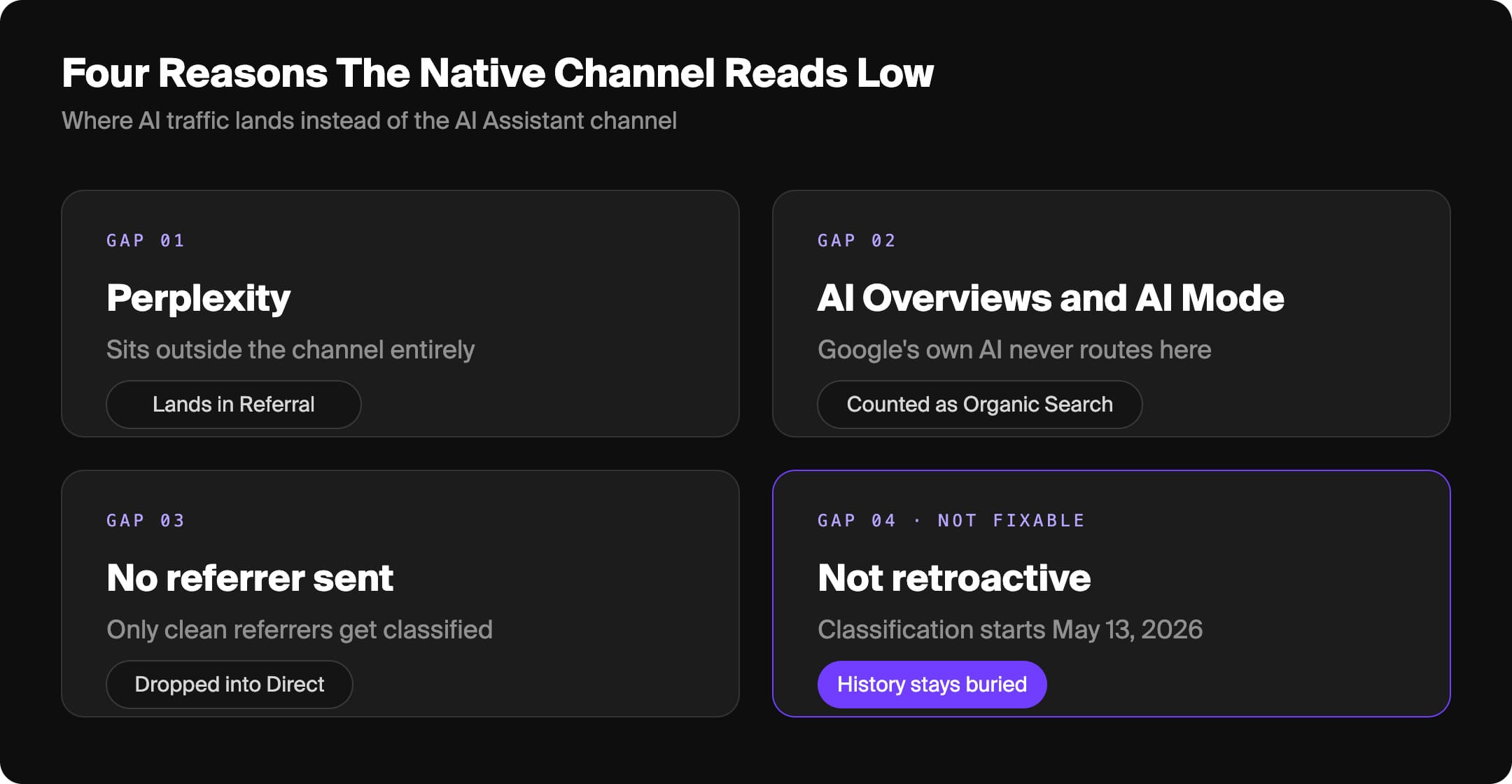
Treat the AI Assistant channel as a floor. Four gaps guarantee it undercounts, and three of them are fixable.
Perplexity sits outside it. Statcounter put Perplexity at roughly 7.7% of AI referral traffic in April 2026, third behind ChatGPT and Gemini. All of it lands in Referral.
Google’s AI counts as Organic Search. AI Overviews and AI Mode clicks never route to AI Assistant. The largest AI surface by audience is invisible inside the channel built to measure AI.
Referrer-less visits still fall into Direct. The channel classifies what carries a clean referrer and nothing else.
It is not retroactive. GA4 processes forward only, so classification starts May 13, 2026 and every earlier AI visit stays buried where it landed. Year-over-year comparisons from the default grouping are not possible until May 2027.
Build A Custom Channel Group That Catches The Rest
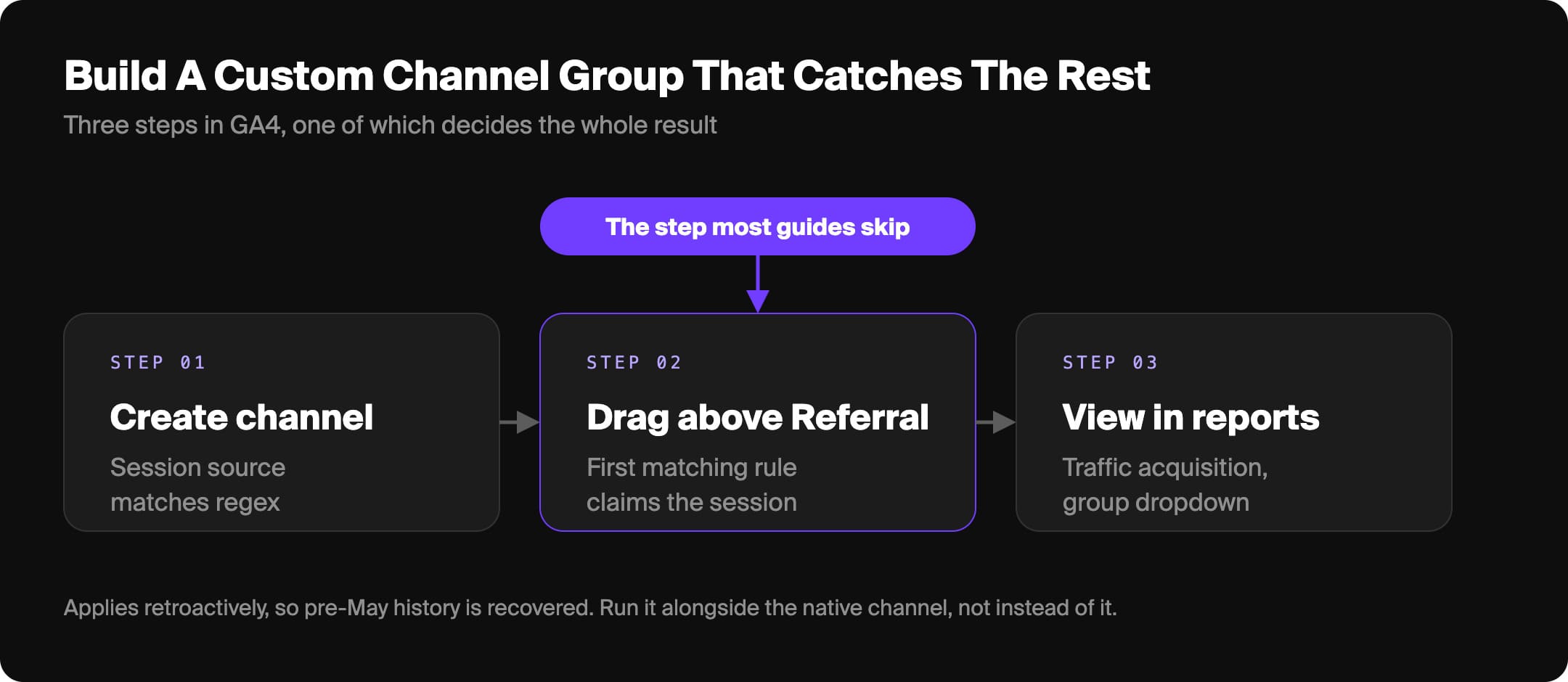
A custom channel group fixes three of those four. It applies retroactively, so it recovers your pre-May history, and it covers any platform you name. Run it alongside the native channel rather than instead of it. Two views that disagree are how you spot a problem in either.
- Go to Admin > Data display > Channel groups > Create new channel group and name it “AI Traffic.”
- Add a channel called “AI Search.”
- Set the condition to Session source matches regex and paste a pattern covering the platforms you care about:
chatgpt.com|chat.openai.com|openai.com|perplexity.ai|gemini.google.com|claude.ai|copilot.microsoft.com|deepseek.com|grok.com|x.ai - Drag the AI Search channel above Referral. This is the step most guides omit and the one that decides whether the whole thing works. GA4 assigns each session to the first matching rule in the list, so a Referral rule sitting higher will claim your AI sessions before they reach yours.
- Save, then select the group from the dropdown in Traffic acquisition.
Two practical notes. GA4 caps you at two custom channel groups, so committing one to AI tracking is a real trade-off worth making deliberately. And the regex needs revisiting as platforms launch and change domains, which is the maintenance cost you accept in exchange for coverage Google does not provide.
Google’s Own AI Lives In Search Console
Because AI Overviews and AI Mode never reach the AI Assistant channel, you track them on Google’s side.
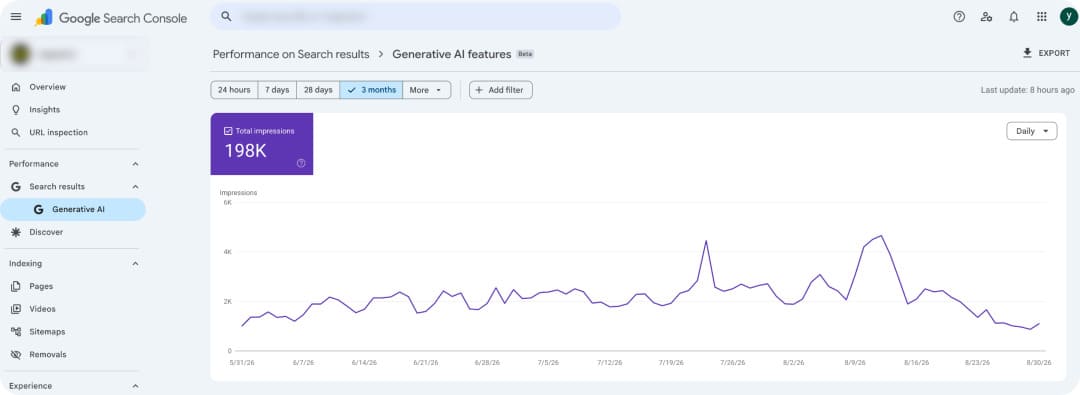
The generative AI performance report launched on June 3, 2026 and finished rolling out to every property worldwide on August 31, 2026. Find it under Performance > Generative AI. It isolates impressions from AI Overviews, AI Mode, and generative AI features in Discover, broken out by page, country, date, and device.
Three things to know before you build reporting on it.
The clicks are not missing. They are unjoinable. The report shows impressions only, which everyone reads as Google withholding click data. Google’s Performance report documentation says that clicking an external link in an AI Overview or AI Mode counts as a click, and those clicks have been flowing into your Web search type totals all along. They are counted, blended with ordinary organic clicks, with no dimension available to separate them. The problem is not absence, it is that nothing joins the two reports together.
There is no “AI Mode filter.” The phrase circulates widely, but Google did not add an AI Mode search-type toggle to the Performance report. It shipped a separate report covering AI Mode alongside AI Overviews and Discover. Anyone asking you for the AI Mode filter means this report.
The API does not expose it. The Search Console API rejects generative-AI values for the type parameter, so the report cannot be pulled programmatically. Export by hand or build your dashboard around a manual step.
One caution on the data itself: impressions across both the standard and generative AI reports dropped sharply around August 12 and 13, 2026. Google confirmed the bug and noted the fix on August 31. If your AI impressions look like they fell off a cliff in mid-August, check that before you write it up as a performance story.
Google also shipped a Search generative AI control alongside the global rollout, a setting that excludes your content from Google’s generative AI features while leaving normal Search indexing intact. Most brands should leave it alone, since opting out removes you from the surface you are trying to win. It is worth knowing it exists, and worth confirming nobody switched it on, because a site that has been excluded will show an empty generative AI report that looks exactly like a visibility problem.
The Text Fragment Method No Longer Works For AI Overviews
Most published guides still recommend detecting the #:~:text= fragment that Google appended to AI Overview links, captured with a Custom JavaScript variable in Google Tag Manager. Google switched AI Overview links to plain inline links in early May 2026, and the setup stopped catching them.
It still fires for Featured Snippets and People Also Ask, which continue to use the fragment. If you have it running, keep it, rename the event to something like text_fragment_click, and stop reporting it as AI Overview tracking.
Read Your Server Logs For The Crawler Layer
GA4 runs on client-side JavaScript and bots do not execute it, so no channel-group work will ever surface crawler activity. That lives in your server logs or your CDN’s bot analytics, and it answers a question the referral reports cannot: whether AI systems can reach your content at all.
Separate the bots by job, because they mean different things:
- Retrieval crawlers (OAI-SearchBot, Claude-SearchBot, PerplexityBot) index pages so AI can cite them in live answers. These tie directly to citations and referral traffic.
- Training crawlers (GPTBot, ClaudeBot, Google-Extended, CCBot) collect content for model training. They build long-term presence in model weights and produce no near-term traffic.
- User-triggered fetchers (ChatGPT-User, Claude-User, Perplexity-User) fire when someone hands your URL to an assistant directly. Every hit is a real person.
Watch retrieval crawler frequency against your publishing schedule. A page OAI-SearchBot never reaches cannot be cited in ChatGPT, and OpenAI states plainly that sites blocking it will not surface in ChatGPT search results. That makes crawler logs a leading indicator, firing weeks before anything shows up in a traffic report.
This is also where accidental self-sabotage surfaces. A blanket User-agent: * disallow in robots.txt, or a redirect chain a retrieval bot abandons, will quietly remove you from AI answers while your GA4 reports look completely normal. Audit that before concluding your AEO work is not landing.
One caveat: user agents are self-declared and easy to spoof. For anything you report on, verify requests against the vendors’ published IP ranges instead of trusting the string.
Turn AI Traffic Into A Number You Can Defend
Volume is the wrong headline for AI. The channel is small and the story is quality.
Start by recovering what you can from Direct. You cannot tag a link an AI platform generates, but you can tag every link you control that an AI is likely to surface: documentation, knowledge base entries, community and directory profiles, syndicated posts, anything seeded into sources models cite. Use a consistent convention so the traffic groups cleanly:
- utm_source = the platform (chatgpt, perplexity, gemini)
- utm_medium = ai, one shared value so every AI link rolls up together
- utm_campaign = the context (docs, community-profile, guest-post)
A finished link looks like https://yoursite.com/pricing?utm_source=perplexity&utm_medium=ai&utm_campaign=docs. Add a utm_medium=ai condition to your custom channel group so tagged clicks land alongside the referrer-detected ones.
Then look at conversion rate, because that is where AI earns budget. Similarweb clickstream data from April to May 2026 put ChatGPT referral conversion at 7.1%, second only to paid search and ahead of organic, direct, social, email, and display. Adobe measured AI referrals converting 31% better than non-AI traffic over the 2025 holiday season, against a 693% year-over-year jump in AI referral volume to US retail sites. Low volume, high intent, because the model qualified the visitor before the click.
The last layer never appears in GA4 at all. AI recommends brands without linking to them, so a model can name you a dozen times a day and generate zero sessions. Click data structurally undercounts your influence. Seeing that layer takes AI visibility monitoring tools that track citation frequency across ChatGPT, Perplexity, Gemini, and the rest independent of clicks. At NoGood, we use Goodie AI for this on client engagements: its Visibility Monitoring tracks brand mentions, citation placement, and share of voice by model, and its Agent Experience Suite covers the crawler layer above.
Report every layer together and the number holds up: GA4 and your custom channel group for chatbot clicks, Search Console for Google’s AI surfaces, logs for access, citations for influence. Report one alone and you are guessing.

Set Up Your AI Tracking This Week
Four moves, roughly an afternoon. Confirm the AI Assistant channel is live in your property and check which platforms it actually recognizes there rather than in a blog post. Build the custom channel group and drag it above Referral. Open the generative AI report in Search Console, now available to every property, and confirm the generative AI control is switched off. Pull one month of server logs and check that retrieval crawlers are reaching your key pages.
That gets you a defensible number. What to do with it is the harder question, and it is where measurement turns into strategy. If you want help building the tracking and the visibility program behind it, NoGood’s AEO team does this work. Being the answer AI recommends is the goal. Tracking is how you prove you are getting there.
Frequently Asked Questions
Do AI crawlers show up in Google Analytics?
No. GA4 depends on client-side JavaScript and crawlers like GPTBot and ClaudeBot do not execute it. Crawler activity lives in server logs or a CDN bot report such as Cloudflare’s.
What is the difference between AI referral traffic and AI crawler traffic?
Referral traffic is a person arriving after clicking a link in an AI answer. Crawler traffic is a bot fetching pages to train a model or index them for retrieval. Referrals convert, crawlers do not. Only referrals belong in traffic reports, though crawler logs tell you whether you are eligible to be cited at all.
How do you track traffic from ChatGPT in GA4?
ChatGPT referrals appear in the native AI Assistant channel, and ChatGPT often appends its own utm_source=chatgpt.com. For full coverage across web and app, add chatgpt.com|chat.openai.com|openai.com to a custom channel group ordered above Referral.
How do you track traffic from Perplexity in GA4?
Perplexity is not in Google’s recognized set, so it defaults to Referral. Add perplexity.ai to a custom channel group to capture it with your other AI sources.
How do you use Google Search Console to track AI Mode traffic?
Open Performance > Generative AI, live on all properties worldwide since August 31, 2026. It reports impressions for AI Overviews, AI Mode, and Discover AI features by page, country, device, and date. No clicks or queries, so read it as a visibility signal rather than a traffic count.
What is the AI Mode filter in Google Search Console?
There isn’t one. Google did not add an AI Mode search-type toggle; it shipped a separate generative AI report covering AI Mode alongside AI Overviews and Discover. Anyone using the phrase means that report.
How do you set up UTM parameters for AI traffic?
Tag links you control with a consistent convention: utm_source for the platform, a shared utm_medium=ai, and utm_campaign for context. Match utm_medium=ai in your custom channel group so tagged clicks land in your AI channel. This only recovers traffic from links you place.
How do you track AI traffic without GA4?
Server logs cover the crawler layer and raw referrer data, and catch visits GA4 misses when JavaScript fails. CDN bot analytics gives the same view without parsing logs. Search Console covers Google’s AI surfaces, and visibility platforms cover citations.
What are the limitations of tracking AI traffic?
Referrer-less visits file as Direct, Google’s AI counts as Organic Search, AI Overview clicks are blended into organic totals with no way to split them, and no click metric captures the mentions where AI recommends you without a link. Every AI traffic number is a floor.
What tools track AI traffic beyond GA4?
Search Console for Google’s AI surfaces, server logs or Cloudflare for crawler activity, and AI visibility platforms for citation and share-of-voice tracking. Each covers a layer the others cannot see.